From recording to release
Your show deserves a home.
Up to 10 shows
Create a new podcast or bring your existing shows with you.
Audio + video
Publish from your phone or upload files in your browser.
Your own address
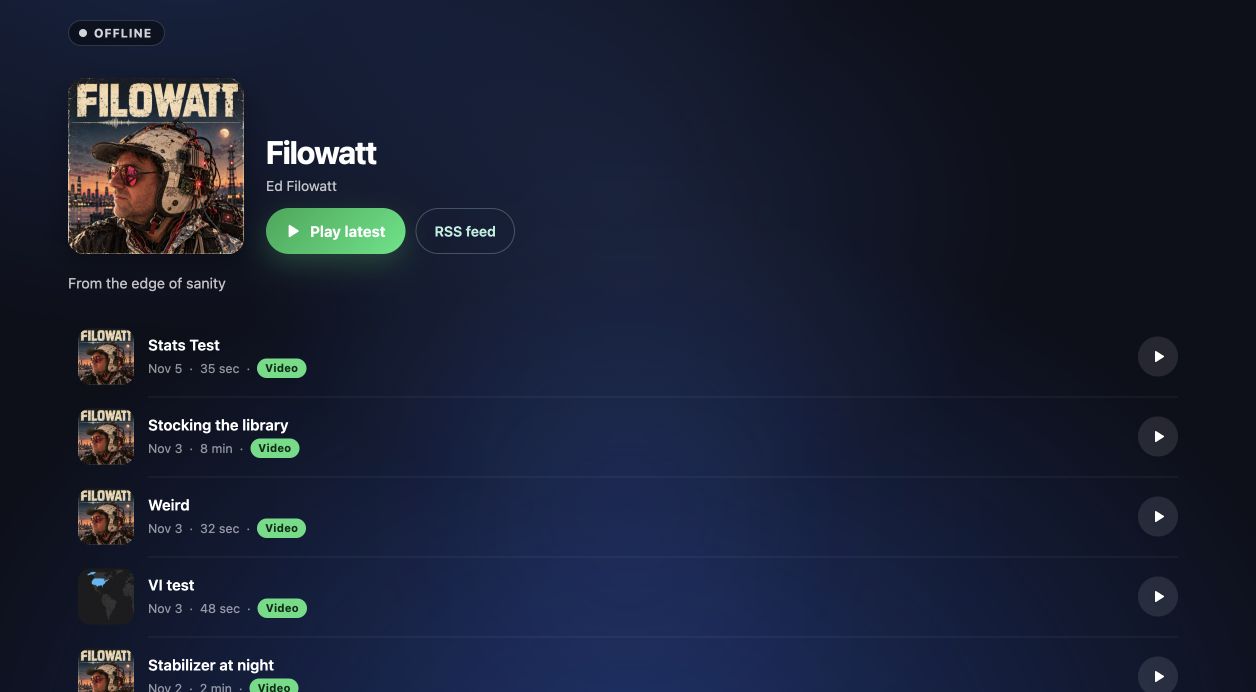
A show website, shareable episode pages and a clean RSS feed.
Know your audience
Show and episode stats, date-range and all-time totals, geography and listening apps.
Connect your feed to the podcast apps your audience uses. Directory setup may require your account and approval; after setup, new episodes are delivered through RSS. Video support varies by destination, and YouTube publishing is a separate setup.
01 · Start here
Add your show.
Visit Backpack.fm to install the Backpack Studio 3.3 beta through TestFlight, or sign in on the web with your Apple account.
- In the app, open Settings → My Shows. On the web, open My shows.
- Choose Add show. Starting fresh? Choose Start a new show, add your title, description and artwork, and choose an available website address.
- Finish your show settings, including category, language and contact email. Publish a recording from Backpack Studio or upload an episode on the web.
Already have a podcast? Choose I already have a show instead. You don’t need to manually recreate all your episodes.
02 · Bring your podcast
Enter your existing RSS feed.
- Copy the RSS feed from your current host. Use the actual feed URL, not your Apple Podcasts, Spotify or website link.
- Choose your previous host under Import from, or let Backpack detect it. Paste the feed and select Preview show.
- Review the show and episode list, then confirm the import. Wait for copying to finish.
- Open your new show, check episode counts, titles, artwork and playback, and choose its website address. Copy the Backpack RSS feed shown in your dashboard.
03 · Finish your migration
Choose the host you’re leaving.
First import your old stats if you want to keep them, verify your show has copied successfully, then redirect the old RSS feed to your new Backpack feed. Use the feed ending in /rss—not the show’s website or an individual media link. Open any guide below; you don’t need to start an import to read it.
Instructions checked November 7, 2026. Host menus, plans and exports can change. Each section links to the provider’s current help.
Libsyn
1. Import old stats (optional)
Libsyn’s documented legacy route is Stats → Exports → Add New → choose report, dates and timezone → Save & Export Now. This describes Libsyn 4; Libsyn 5 controls may differ. Export access depends on your statistics package. Use daily rather than weekly or monthly rows for daily history.
Official stats / support guide ↗
Then follow Bring your historical stats below to review and save compatible data in Backpack.
2. Verify your copied show
Wait for copying to finish. Check episode count, artwork and playback in Backpack before changing your old feed.
3. Redirect your old feed
Settings → Redirects (some dashboards use Advanced Tools → Feed & Website Redirects). Enter your Backpack RSS feed in the feed redirect field, save and confirm.
Libsyn may have separate feeds for different destinations. Verify each existing listing after the move.
4. Verify your existing listings
In your Backpack show dashboard, open Finish moving your show and check the old-feed redirect. Then verify your existing directory listings. Keep the redirect working; do not delete the old show just because the copy finished.
Podbean
1. Import old stats (optional)
Channel Dashboard → Statistics → Episodes → Trends. Choose All episodes, All time and View by Episode, then Export CSV. This report includes episode media URLs. For geography, open Statistics → Overview → Where your audience comes from, choose a period and Export CSV. Available reports depend on your plan. Review column mapping and episode matches before saving.
Official stats / support guide ↗
Then follow Bring your historical stats below to review and save compatible data in Backpack.
2. Verify your copied show
Wait for copying to finish. Check episode count, artwork and playback in Backpack before changing your old feed.
3. Redirect your old feed
Settings → Feed → Advanced Feed Settings → Redirect to a New Feed. Paste your Backpack RSS feed, then Update Options.
4. Verify your existing listings
In your Backpack show dashboard, open Finish moving your show and check the old-feed redirect. Then verify your existing directory listings. Keep the redirect working; do not delete the old show just because the copy finished.
Transistor
1. Import old stats (optional)
In Analytics, export Episode Breakdown for All Time, plus the location, player or trend reports you want. Files can have dates across columns: use a suitable total column for a breakdown, or reshape daily data into Date and count rows. Long-range trends may be monthly, which the daily importer does not accept. Not every Transistor metric is exportable.
Official stats / support guide ↗
Then follow Bring your historical stats below to review and save compatible data in Backpack.
2. Verify your copied show
Wait for copying to finish. Check episode count, artwork and playback in Backpack before changing your old feed.
3. Redirect your old feed
Open your show’s Settings → RSS Feed. Paste your Backpack RSS feed into Permanent Redirect (301), then Save Changes.
Transistor says its redirect remains active permanently, including after cancellation.
4. Verify your existing listings
In your Backpack show dashboard, open Finish moving your show and check the old-feed redirect. Then verify your existing directory listings. Keep the redirect working; do not delete the old show just because the copy finished.
Buzzsprout
1. Import old stats (optional)
Open Stats and select the show, date range and episode totals you want to keep. Export the reports your dashboard offers. If your plan or report has no CSV export, ask Buzzsprout support for one; you can also copy verified episode totals into Backpack’s template. Save visual reports for your own records—Backpack does not import screenshots or PDFs as stats.
Official stats / support guide ↗
Then follow Bring your historical stats below to review and save compatible data in Backpack.
2. Verify your copied show
Wait for copying to finish. Check episode count, artwork and playback in Backpack before changing your old feed.
3. Redirect your old feed
Settings → Podcast Settings → Redirect. Follow the backup and redirect steps, using your Backpack RSS feed.
Buzzsprout’s redirect flow also schedules a downgrade. It recommends keeping the account active for at least three weeks.
4. Verify your existing listings
In your Backpack show dashboard, open Finish moving your show and check the old-feed redirect. Then verify your existing directory listings. Keep the redirect working; do not delete the old show just because the copy finished.
Spotify for Creators / Anchor
1. Import old stats (optional)
On the Spotify for Creators website, open Analytics, select a chart and date range, and choose Export. Keep the original metric: plays and unique listeners are not download totals. Import supported daily or location reports using their original metric; retain engagement, follower and revenue reports separately. Exporting analytics is a web feature.
Official stats / support guide ↗
Then follow Bring your historical stats below to review and save compatible data in Backpack.
2. Verify your copied show
Wait for copying to finish. Check episode count, artwork and playback in Backpack before changing your old feed.
3. Redirect your old feed
On the Spotify for Creators website, open Settings → Redirect your podcast. Paste your Backpack RSS feed and select Redirect.
Use the website, not the Spotify mobile app. Allow up to seven days before closing the old account.
4. Verify your existing listings
In your Backpack show dashboard, open Finish moving your show and check the old-feed redirect. Then verify your existing directory listings. Keep the redirect working; do not delete the old show just because the copy finished.
RSS.com
1. Import old stats (optional)
In Analytics → Episodes, use Export as CSV for episode totals. For other charts, use the chart menu to download CSV, one report at a time. RSS.com documents a 180-day limit for chart exports; ask its support about older history. Import available totals and supported breakdowns separately, preserving each file’s date range.
Official stats / support guide ↗
Then follow Bring your historical stats below to review and save compatible data in Backpack.
2. Verify your copied show
Wait for copying to finish. Check episode count, artwork and playback in Backpack before changing your old feed.
3. Redirect your old feed
Settings → disable Copy Protection if enabled → Redirect My Podcast. Paste your Backpack RSS feed, choose Redirect my show, then confirm Move My Show.
RSS.com recommends keeping the subscription and redirect active for 45–90 days. Redirecting does not cancel billing.
4. Verify your existing listings
In your Backpack show dashboard, open Finish moving your show and check the old-feed redirect. Then verify your existing directory listings. Keep the redirect working; do not delete the old show just because the copy finished.
Simplecast
1. Import old stats (optional)
Analytics → Content Reports. Select your show, date range and timezone; choose Downloads and one split such as Episode Name, Country, Player or Time. Run report → Export. Choose All results: the default top 10 can omit history. This report builder supports up to 15 months. Export each breakdown separately; review CSV columns before importing.
Official stats / support guide ↗
Then follow Bring your historical stats below to review and save compatible data in Backpack.
2. Verify your copied show
Wait for copying to finish. Check episode count, artwork and playback in Backpack before changing your old feed.
3. Redirect your old feed
Show settings → Distribution → Advanced Settings → RSS Feed Redirect. Paste your Backpack RSS feed and save.
Simplecast says redirects remain permanently after closing the account.
4. Verify your existing listings
In your Backpack show dashboard, open Finish moving your show and check the old-feed redirect. Then verify your existing directory listings. Keep the redirect working; do not delete the old show just because the copy finished.
Acast
1. Import old stats (optional)
Analytics → Content Performance → select your show and dates → download button → choose fields. The new Analytics dashboard replaces Insights. Export before redirecting, because you may lose analytics access afterward. Keep audio downloads and video views separately labeled; review the exported columns before importing.
Official stats / support guide ↗
Then follow Bring your historical stats below to review and save compatible data in Backpack.
2. Verify your copied show
Wait for copying to finish. Check episode count, artwork and playback in Backpack before changing your old feed.
3. Redirect your old feed
Show Settings → Show redirection. Confirm your show is prepared, enter your Backpack RSS feed and save.
Export analytics BEFORE redirecting: Acast says you lose access afterward. If using Acast ads, contact its support before importing to avoid copying inserted ads.
4. Verify your existing listings
In your Backpack show dashboard, open Finish moving your show and check the old-feed redirect. Then verify your existing directory listings. Keep the redirect working; do not delete the old show just because the copy finished.
Captivate
1. Import old stats (optional)
Before moving, select All Time in Analytics and download episode totals, daily trends, listening apps and locations. Preserve the original timezone. Import episode totals with Backpack’s template, then each supported breakdown with column mapping. Export first: moving a podcast closes its Captivate dashboard.
Official stats / support guide ↗
Then follow Bring your historical stats below to review and save compatible data in Backpack.
2. Verify your copied show
Wait for copying to finish. Check episode count, artwork and playback in Backpack before changing your old feed.
3. Redirect your old feed
Podcast Settings → Cancel Show → Moving. Enter your Backpack RSS feed, review the confirmations and choose Move Podcast.
Export All Time analytics first, including Downloads by episode. Moving closes this podcast’s dashboard; remove dynamic ads before copying media.
4. Verify your existing listings
In your Backpack show dashboard, open Finish moving your show and check the old-feed redirect. Then verify your existing directory listings. Keep the redirect working; do not delete the old show just because the copy finished.
Spreaker
1. Import old stats (optional)
Download CSV reports from Statistics for the show and date range you need. Spreaker distinguishes Plays_count from Downloads_count; its displayed downloads can combine both. Do not silently rename plays as downloads. Use the original metric and count column for historical reports, and retain percentages or unsupported metrics outside the importer.
Official stats / support guide ↗
Then follow Bring your historical stats below to review and save compatible data in Backpack.
2. Verify your copied show
Wait for copying to finish. Check episode count, artwork and playback in Backpack before changing your old feed.
3. Redirect your old feed
Open your show’s RSS settings and enable the Redirect Field option. Enter your Backpack RSS feed and save.
4. Verify your existing listings
In your Backpack show dashboard, open Finish moving your show and check the old-feed redirect. Then verify your existing directory listings. Keep the redirect working; do not delete the old show just because the copy finished.
Castos / Seriously Simple Podcasting
1. Import old stats (optional)
In Analytics → Download Reports, select this podcast and your date range, then download the available CSV reports. Castos documents this for Growth and Pro plans. Preserve listens as plays rather than relabeling them as downloads. Followers and PDF reports are not supported by Backpack’s stats importer. For a self-hosted WordPress feed, obtain exports from the analytics service you actually used.
Official stats / support guide ↗
Then follow Bring your historical stats below to review and save compatible data in Backpack.
2. Verify your copied show
Wait for copying to finish. Check episode count, artwork and playback in Backpack before changing your old feed.
3. Redirect your old feed
Castos: podcast Settings → Distribution → Danger Zone; enter your Backpack RSS feed and Save. WordPress plugin: Podcasting → Settings → Feed Details → redirect the feed URL.
Castos recommends leaving the redirect in place for at least four weeks.
4. Verify your existing listings
In your Backpack show dashboard, open Finish moving your show and check the old-feed redirect. Then verify your existing directory listings. Keep the redirect working; do not delete the old show just because the copy finished.
RedCircle
1. Import old stats (optional)
Analytics → Downloads → select your show and date range → download the relevant report. Exporting requires a supported paid plan. For daily totals choose Day and Over Time, not Cumulative. Since Published comparisons are limited windows, not lifetime episode totals.
Official stats / support guide ↗
Then follow Bring your historical stats below to review and save compatible data in Backpack.
2. Verify your copied show
Wait for copying to finish. Check episode count, artwork and playback in Backpack before changing your old feed.
3. Redirect your old feed
Open your podcast → three-dot menu → Remove Podcast → Redirect Podcast. Enter your Backpack RSS feed, review the agreement and confirm Redirect.
Export stats and remove dynamic Audio Blocks before moving. Choose Redirect, not permanent deletion; deleting the show can remove its redirect.
4. Verify your existing listings
In your Backpack show dashboard, open Finish moving your show and check the old-feed redirect. Then verify your existing directory listings. Keep the redirect working; do not delete the old show just because the copy finished.
Other / custom RSS feed
1. Import old stats (optional)
Ask your analytics provider for episode download totals and any daily, country, region, city or listening-app CSV reports. Keep the original files and metric definitions. Use the Backpack totals template or map supported report columns; a feed alone does not contain historical analytics.
Then follow Bring your historical stats below to review and save compatible data in Backpack.
2. Verify your copied show
Wait for copying to finish. Check episode count, artwork and playback in Backpack before changing your old feed.
3. Redirect your old feed
Ask your host or website administrator to set a permanent 301 redirect from your original RSS feed to your Backpack RSS feed.
Keep the old feed address working. Updating only Apple does not move subscribers in other apps.
4. Verify your existing listings
In your Backpack show dashboard, open Finish moving your show and check the old-feed redirect. Then verify your existing directory listings. Keep the redirect working; do not delete the old show just because the copy finished.
Keep your history
Bring your historical stats.
Your RSS feed carries episodes and show information, not listening history. Historical stats come from the CSV files you export from your previous host.
- On Backpack.fm, open your imported show’s Dashboard → Finish moving your show or its Stats tab.
- For episode download totals, choose Import historical downloads or Review or import totals. Download the template, match the episodes, add the old download totals, and enter the previous host and cutoff date.
- For locations, dates or listening apps, choose Import geography, daily or app report. Select the report type, original metric, date range and timezone. Choose whether it covers the whole show or one episode, then map its label/date and count columns.
- Preview the file. Check the episode matches, units and counts before saving. Keep your original full exports too.
Which CSV files work?
Supported reports include episode download totals and country, region/state, city/market, daily and listening-app breakdowns. Reports retain the original metric: downloads, plays or unique listeners. Keep unique listeners separate; adding them across days does not give a unique audience total.
Use UTF-8 CSV files under 500 KB, with no more than 2,000 data rows. A breakdown needs one row per label and whole-number counts. Daily dates must be YYYY-MM-DD. Wide date-column files may need reshaping, and monthly totals cannot be imported as daily data. Use the episode template when the original headings or identifiers do not match.
There is no single export layout shared by these hosts. A plan may not export every report. If a file fails validation, keep it and contact us; don’t change the meaning of the numbers to make it fit.
What happens to the imported numbers and original files?
Successfully saved imports retain their uploaded CSV for later download and review/reprocessing. Episode totals are historical totals alongside Backpack’s new measurements. Re-importing an episode total replaces its previous imported value rather than adding it again.
Breakdown reports remain separate snapshots with their source and date range. Overlapping exports are not added together, and they do not rewrite Backpack’s measured geography, daily charts or listening-app stats. Imported history is not represented as independently verified or IAB-certified by Backpack.
Keep the same show
Bring your listeners with you.
A permanent RSS redirect tells podcast apps where your show moved. Existing subscriptions in RSS apps such as Overcast can follow the old feed to the new one when they refresh. Do not submit duplicate listings for a show that already exists.
- Apple Podcasts: preserve the existing listing and episode identifiers. Verify the new feed after redirecting. If you cannot redirect the old feed, use Apple’s process for changing the feed in Podcasts Connect. Apple’s migration guide ↗
- Spotify: open the existing show in Spotify for Creators, go to Settings, update its RSS feed and hosting provider, and submit the change. Spotify’s instructions ↗
- Other directories: check your existing Amazon Music, iHeartRadio, Pocket Casts and other listings. Use their update/support tools if the feed has not changed. A successful redirect check does not mean every directory has refreshed yet.
Publish future episodes from Backpack after switching. Keep your old redirect available for the period your former host recommends, and confirm cancellation and billing separately. If the old host can keep the redirect permanently, leave it in place.
Make it. Publish it. Keep going.
Try hosting a new show or bringing an existing podcast to Backpack. Tell us what feels easy, what gets in your way, and what you want next.